Step 1: Search for a product using Google shopping
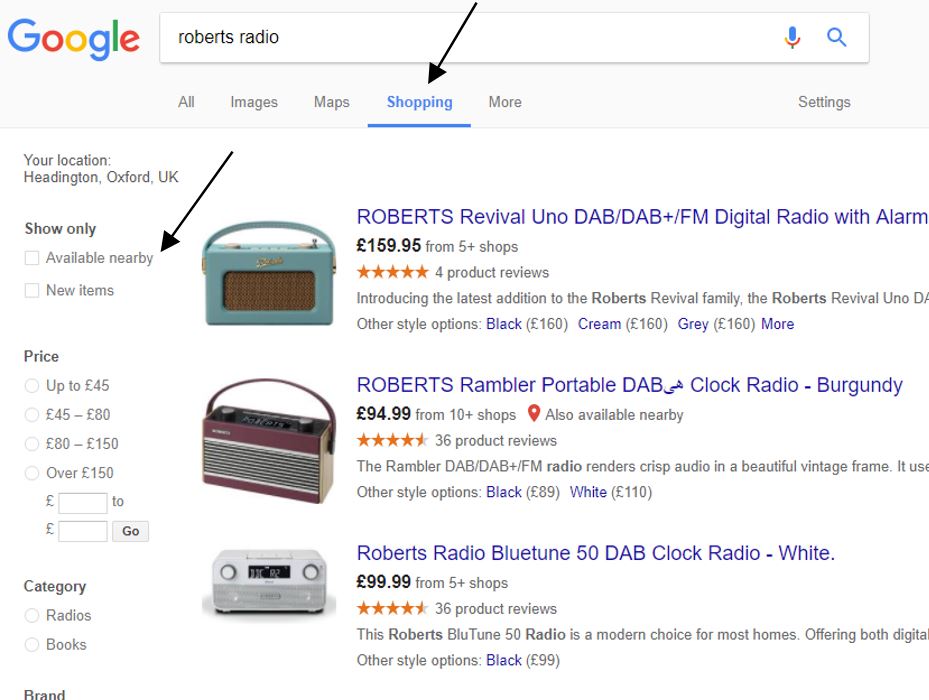
Clicking on this will give you items available based on product reviews and price. You can also ask only for results available in shops near to you by clicking on 'Available nearby'.
Step 2: Find an item you like using Google shopping
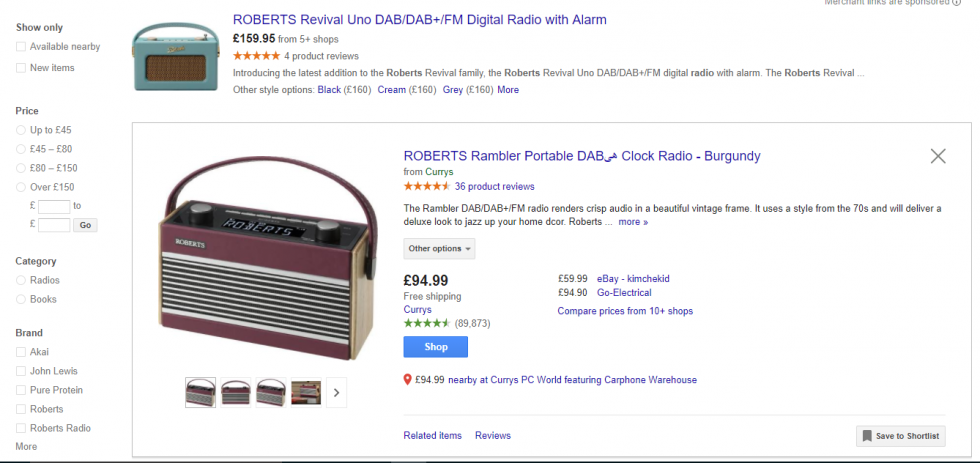
If you click on one of the suggested items you will see product details as well as details of the sellers available.
Step 3: Search via Google
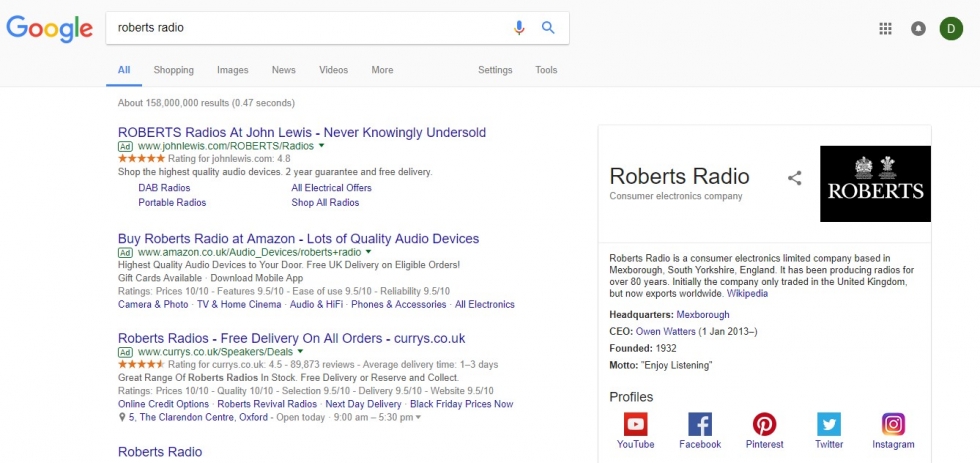
If you’ve searched for a particular brand, you may also see the brand’s own website. Choose one of these websites and click on the link.
Step 4: Searching for and buying a product from a website
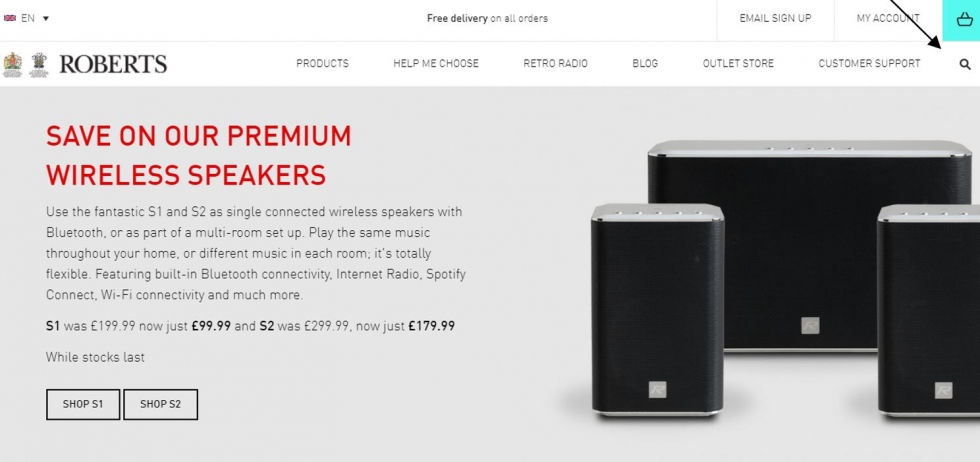
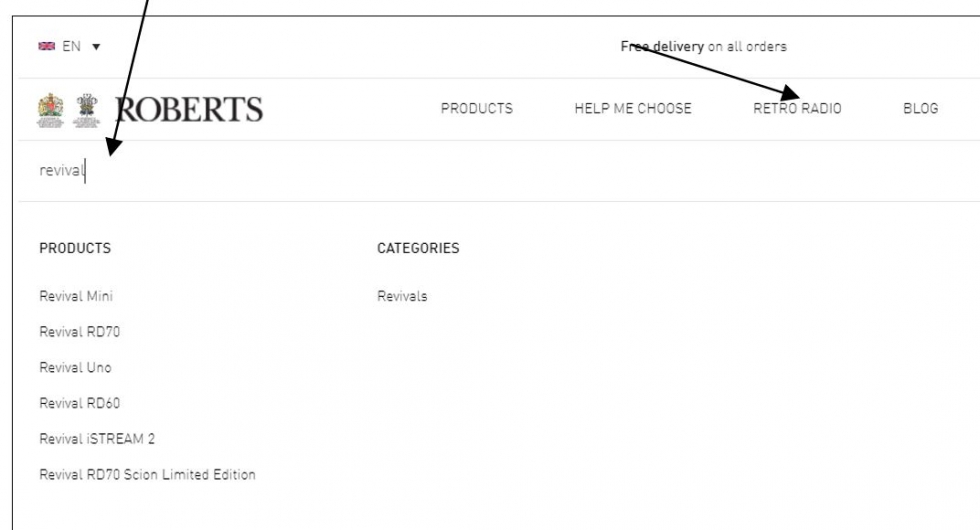
You can now narrow down your search by typing in more specific details such as a model name (for example “revival”) in the search box, which is usually at the top right of the screen.
Then click on the magnifying glass in the top right hand corner. Some websites will have Go or Search next to the search box. Alternatively, you can click into a specific category (such as “Retro radios”) and browse until you find a product you like.
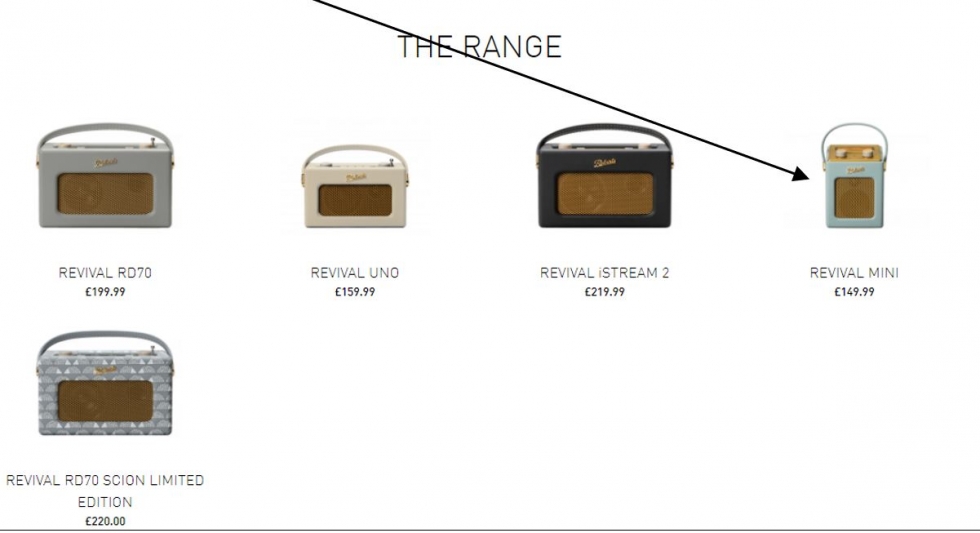
We have clicked into “Retro radios” and a selection of matching products is now shown. Click on any of them to see more details. We have selected the Revival Mini.
Step 5: Adding a product to your basket
There are two boxes next to the image one to choose the quantity that you want to buy and one to choose the colour that you want.
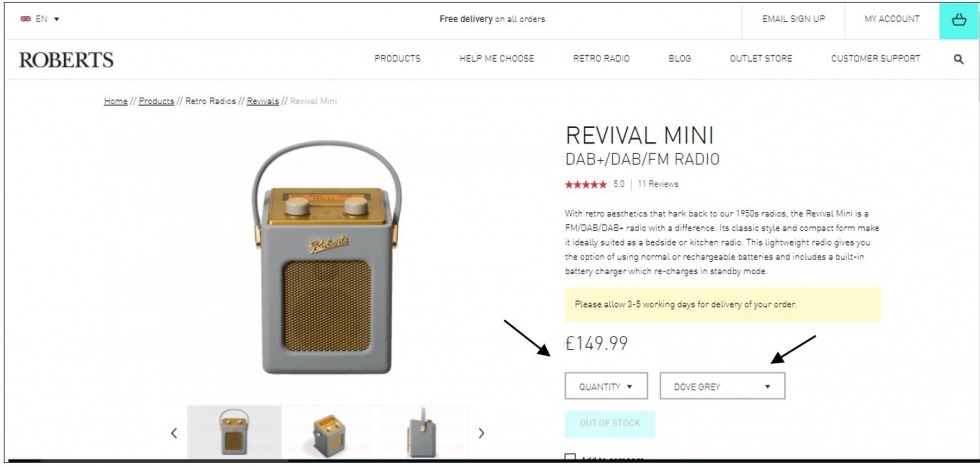
Once you have chosen the amount and colour click on ADD TO BASKET. Doing this will save the details of this item until you’re ready to buy it, just as if you’ve popped something you want to buy into a real shopping basket.
Step 6: Continue shopping or buy your product
You now have two choices either to Continue Shopping if you wanted to buy other items from this website or to click on Go To Cart and pay for the item you have chosen.

Step 7: Checkout and pay
To pay for your item click on the Checkout button.
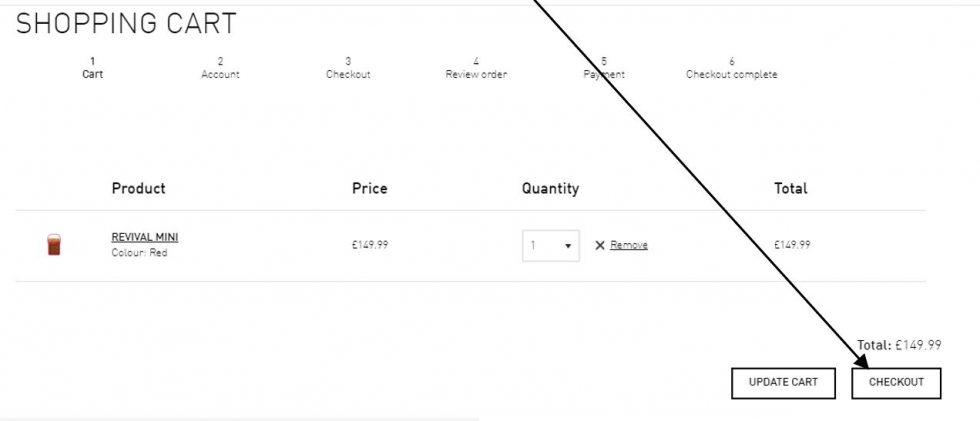
If you intend using a site that gives you a choice on a regular basis then signing up for an account will make paying for items much quicker as your basic information is stored.
Step 8: Create an account before you buy
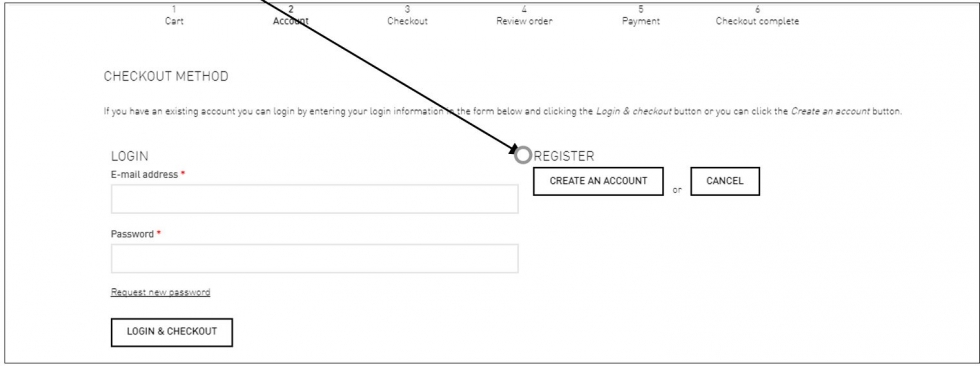
On this website you have to create an account in order to buy your item. Click Create An Account.
Most websites will let you checkout as a guest.You can choose to create an account at a later time.
Step 9: Finalise checking out
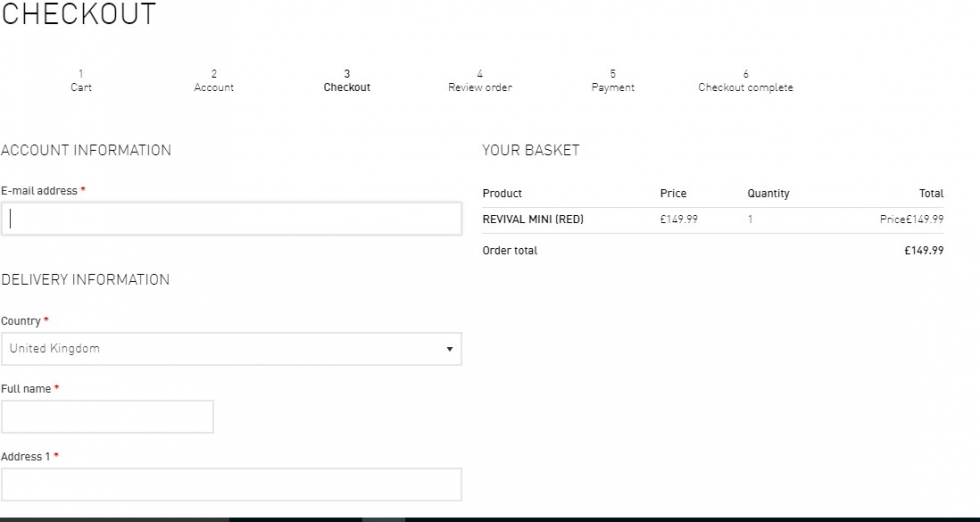
You will need to complete all the boxes marked with an asterisk such as your email, name and address. If the item you are buying is a gift then complete the box with the address of the person you are sending it to. Please note however that some websites will only send items to the same address as that of the bill payer so this might not be possible.
If the item is coming to you make sure there is a tick in this box to save having to enter information twice.
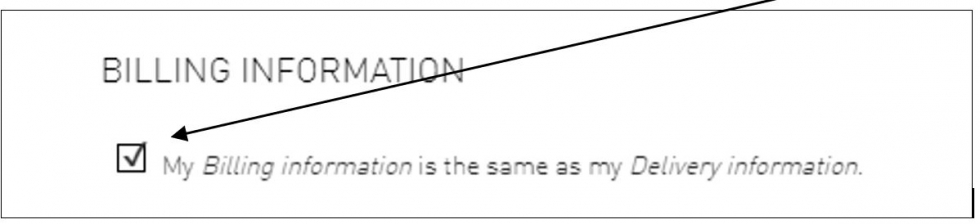
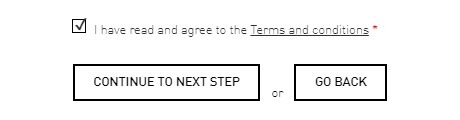
Don’t forget to tick this box too and then click on Continue To Next Step.
Next you will be given an opportunity to Review Your Purchase. This is your chance to make sure that you have ordered the item you want and the right quantity as well as given the correct name and address that the item is to go to.If all is OK click on Continue To Next Step.
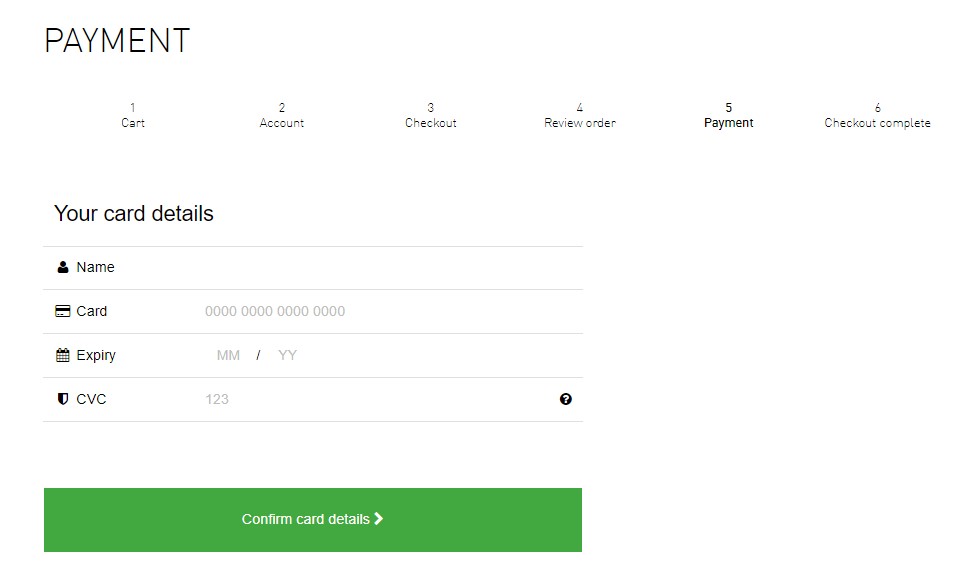
Finally, enter your credit or debit card details and any other information required. Click Confirm Card Details if you’re happy to make the payment.